How to add YouTube chapters and timestamps to a video
Chapters let a viewer jump to a useful part of a longer YouTube video. You can add them in the video description as timestamps and titles. Start with the actual finished export: a chapter marker copied from an earlier rough cut may land in the wrong sentence after you remove a restart.
Choose chapter breaks that name real sections
Watch the final video and mark the moment each new section actually starts. Use labels such as ‘Choosing the better take’ or ‘Checking the export’ rather than vague names like ‘Part two.’ A chapter should help someone decide where to go without having to play every section first.
Do not make a marker every time the camera changes. A jump cut, zoom or B-roll shot can happen inside one topic. Use a new chapter when the viewer’s question changes, not when the picture changes.
Put the timestamps in the video description
In YouTube Studio, open Content, select the video and edit its Description. Add timestamp-and-title lines in ascending order. YouTube’s current instructions say the first timestamp must start at 00:00, the list needs at least three timestamps, and each chapter must be at least 10 seconds long. Save the description when the list is complete.
Manual chapters override automatic chapters. YouTube says access to chapters may require Advanced features, so check the video and your account if correctly formatted markers do not appear. Platform rules can change; the YouTube Help link below is the authority for the current requirements.
02:10 Edit the explanation; 00:00 What we will make; 00:42 Prepare the recording. These rough notes are out of order.
Put one timestamp and title on each line, starting at 00:00 and moving forward. The complete four-line example below shows the format.
Invented example. A real chapter list must be checked against the final uploaded video's duration and section starts.
Copy a clear pattern, then replace the times
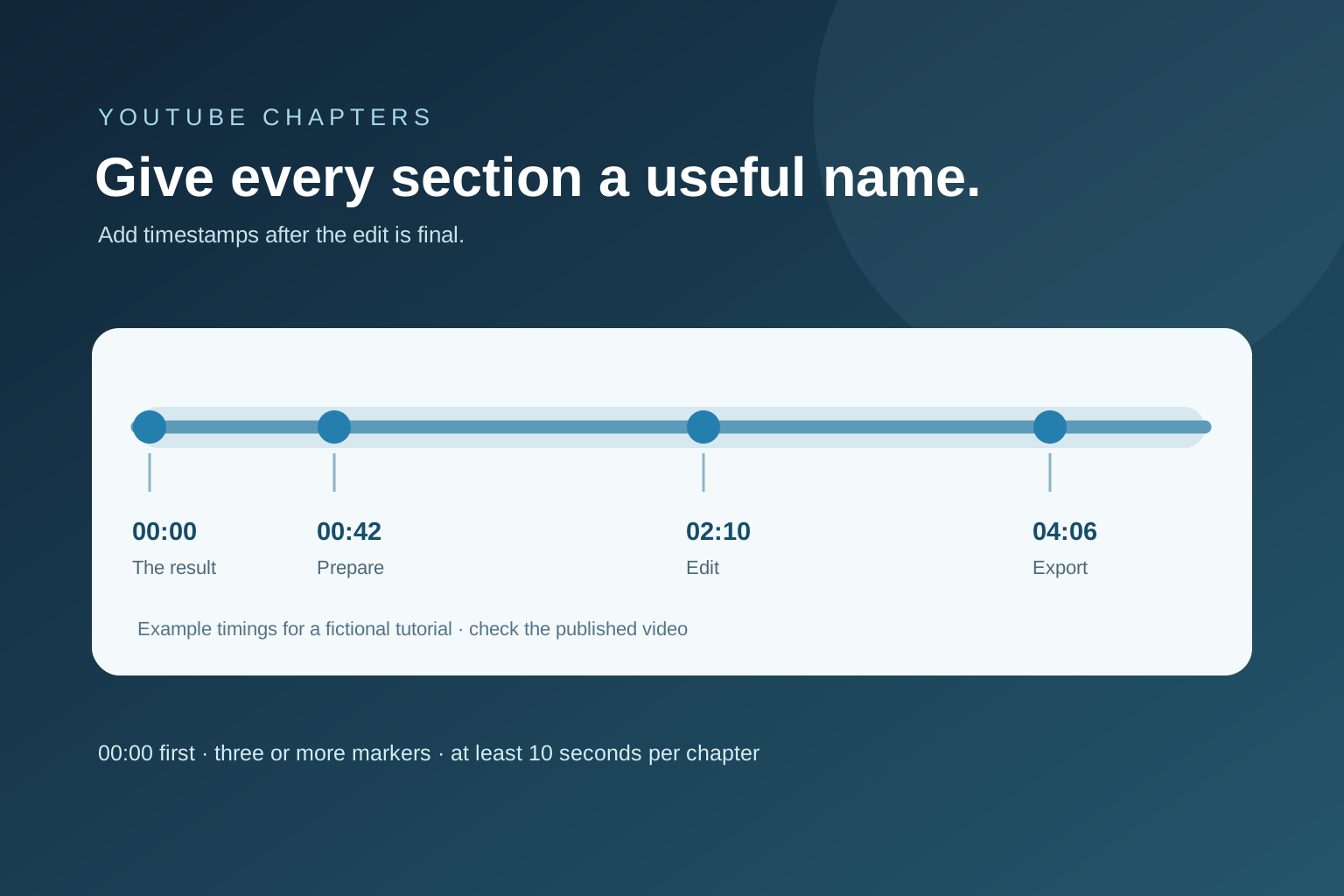
This fictional five-minute tutorial shows the exact line-by-line format to put in a YouTube description. Replace every title and timestamp with one measured from your final video. Each example chapter lasts at least ten seconds, including the last chapter before the video ends.
Play the published video and select every marker once. A section that starts half a sentence late is still a poor guide even when YouTube accepts the format.
00:00 What we will make
00:42 Prepare the recording
02:10 Edit the explanation
04:06 Check the final export
When chapters do not appear, check these things first
Confirm that your first line begins at 00:00, that there are at least three entries, that their times rise rather than repeat and that no section is shorter than 10 seconds. Check that you saved the description and did not paste a timestamp from a different version of the edit.
If the structure is correct, check the video in YouTube Studio and the linked account’s feature access. Automatic chapters may be disabled or overridden by your manual list. Avoid making a second near-identical upload merely to test the description; first verify the existing video and current YouTube Help instructions.
- The first marker is 00:00.
- There are at least three markers in ascending order.
- Each section lasts at least 10 seconds.
- Every title describes the section it opens.
- Every marker lands correctly in the published video.
Make chapters after the edit is final
Finish the long-form cut, captions and export before recording timestamps. A deleted opening changes every later marker. If you revise the video again, recheck the list against the new export and update the description.
Motionlark helps shape a local editing workflow; this guide explains the manual YouTube publishing step. It does not claim that Motionlark currently creates or uploads chapters for you. For export format choices, read the separate guide linked below.
Further reading
Checked 3 October 2026. Platform requirements can change.
Make your next edit simpler.
Read more about editing with Motionlark.
Download for Mac Choose YouTube export settings