Best video format for YouTube: choose export settings you can check
For a typical standard-dynamic-range YouTube video, MP4 with H.264 video and AAC audio is a practical starting point. That answer is only useful when you also preserve the recording’s frame rate, choose a suitable bitrate and inspect the exported file. The file name alone cannot tell you whether the picture and sound are right.
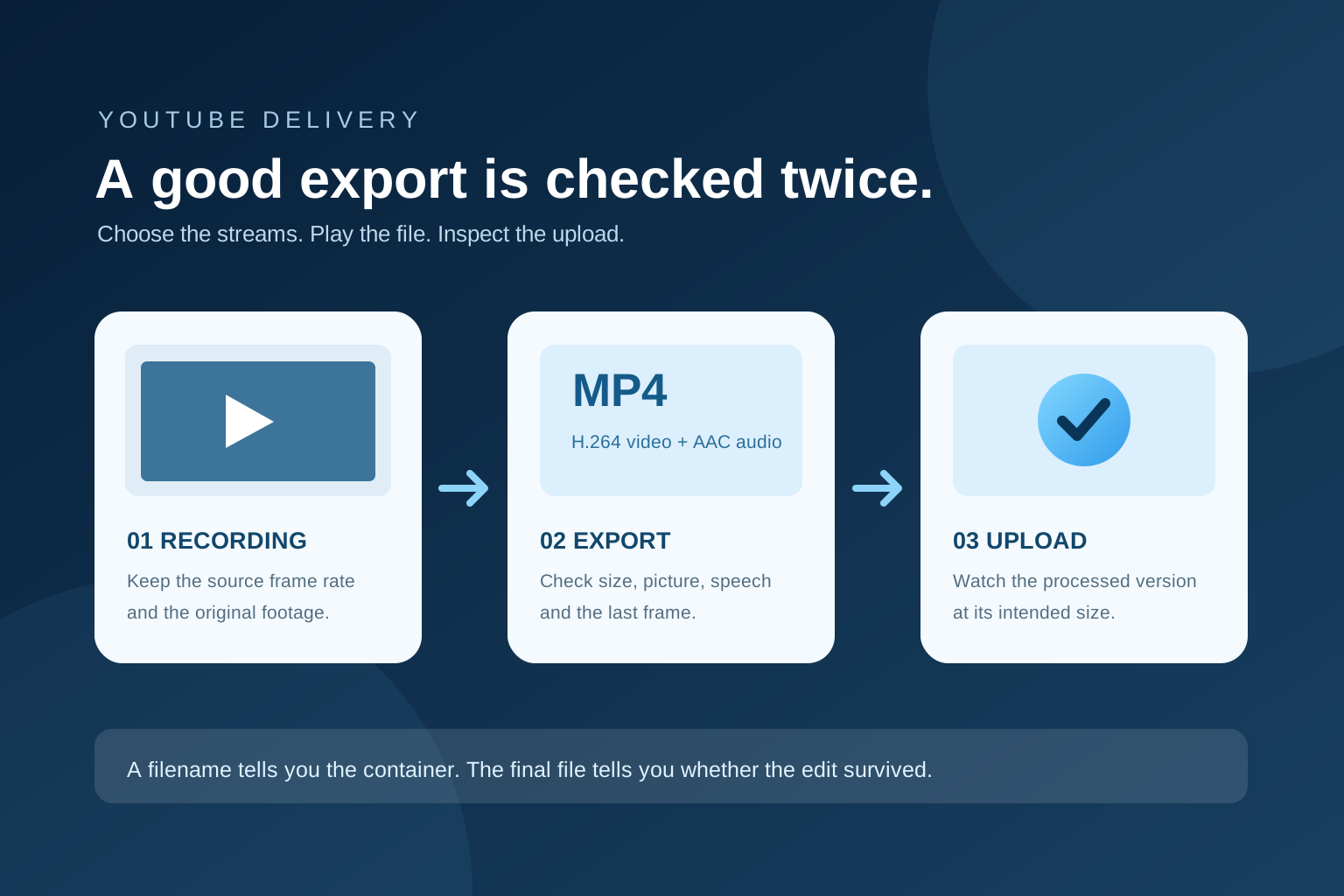
Separate the file container from the picture inside
MP4 is a container: it holds encoded video and audio streams. H.264 is one way to encode the picture; AAC is one way to encode the sound. An .mp4 extension does not guarantee either codec, so inspect the actual export settings or the finished file when compatibility matters.
YouTube’s upload guidance lists MP4, H.264 and AAC-LC among its recommended settings. It also supports other inputs, so a source MOV file does not automatically need a separate conversion before you edit it. Choose the export format after the edit, and keep the original recording untouched.
Keep the source frame rate unless you have a reason to change it
If you recorded at 25 frames per second, exporting at 30 does not create five new moments of real motion each second. YouTube advises uploading at the frame rate used in recording; common examples are 24, 25, 30, 48, 50 and 60 fps. Check the source rate before selecting an export preset.
Match the output shape to the story. A conventional landscape YouTube video commonly uses 16:9. A square or vertical video can also be uploaded; YouTube adapts its player to the video’s aspect ratio. Make a separate vertical composition for a Short rather than squeezing a landscape edit into a tall file.
The editor shows a ten-minute 1080p30 project. Its first export is only 24 MB and the speech sounds thin.
Inspect the actual file and its export settings. At YouTube’s 8 Mb/s SDR video reference plus 384 kb/s stereo audio, a ten-minute file would be roughly 629 MB before overhead; 24 MB suggests a very different setting or incomplete export.
Illustrative calculation, not an app benchmark or a universal target. Compare the file with the source and your chosen export settings.
Treat bitrate as a quality setting, not a ranking trick
For standard-dynamic-range (SDR) H.264 uploads, use YouTube’s video bitrate references below to check an export preset. They are recommendations, not mandatory limits or guarantees of sharper playback. Higher bitrates produce larger files, and a poorly focused source will still look soft.
A ten-minute 1080p30 file at 8 Mb/s video plus 384 kb/s stereo audio is about 629 MB before container overhead: (8 + 0.384) megabits per second × 600 seconds ÷ 8. Actual export size varies with variable bitrate, audio choices and metadata. This calculation helps you notice an unexpectedly tiny export without claiming one exact file size for every recording.
| Resolution | 24, 25 or 30 fps | 48, 50 or 60 fps |
|---|---|---|
| 1080p | 8 Mb/s | 12 Mb/s |
| 2160p (4K) | 35–45 Mb/s | 53–68 Mb/s |
Inspect the delivered file before the upload
Play the exported file locally from its first frame to its last. Check speech, captions, important on-screen text, colour and any cuts near the end. If the file is wrong before upload, changing its title or YouTube settings will not repair the missing material.
Then check the processed YouTube upload at the intended viewing size. Processing can take time and playback quality may change as additional renditions become available. If a chapter or caption seems wrong, compare it with the actual exported video rather than an earlier editing preview.
- The file has the intended aspect ratio and resolution.
- The frame rate matches the source or a deliberate conversion.
- The picture and sound streams use the formats I selected.
- Names, numbers and captions match the final edit.
- The first and last frames, plus every important cut, play correctly.
Where the export fits in an editing workflow
A good export cannot make a rough cut coherent. First choose the complete take, listen across the joins, check supporting footage and approve captions. Keep the long-form edit as its own version before making a separate Short. The YouTube editing plan on this site walks through that earlier work.
Motionlark’s Mac download page shows current availability. This guide explains YouTube delivery choices generally; it does not imply that a particular bitrate, codec or export preset is already exposed in an unreleased installer.
Further reading
Checked 3 October 2026. Platform requirements can change.
Make your next edit simpler.
Read more about editing with Motionlark.
Download for Mac Follow the YouTube editing plan