What editing software do YouTubers use? Choose by the job
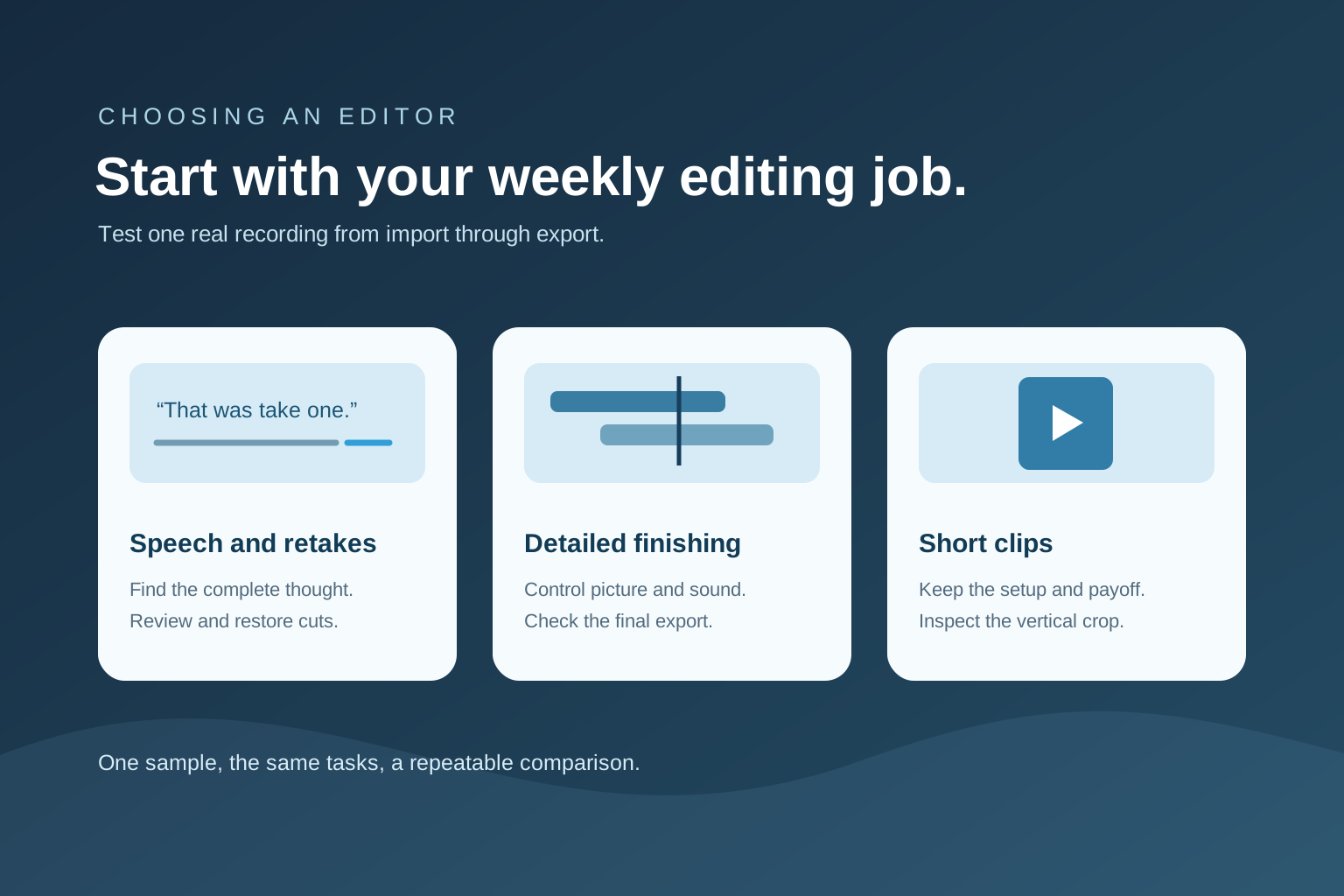
There is no single editor that every YouTuber uses. A screen tutorial, a solo explanation and a multicamera production ask for different controls. Start with the editing work you repeat each week, then choose the tool that lets you complete and check it reliably.
Describe the recording before comparing brands
Write down how many speakers and cameras you use, whether your source is mostly speech, whether you need colour or audio finishing, and the kinds of supporting footage you place. A solo talking-head recording often needs retake selection, natural cuts, captions and a separate Short. A multicamera interview may need switching and synchronization before any of those tasks.
Name the output as well: a long YouTube video, a lesson, a Short, or several versions. A tool that makes a fast first cut may be valuable even if another editor is needed for advanced finishing. Conversely, a full editor may be worth its learning time when your visual work is complex.
Know the three common editing approaches
Full timeline editors such as Final Cut Pro and DaVinci Resolve give direct control over picture, audio and the final export. They suit projects that need detailed colour, effects or mixed media, but the number of controls can slow a simple weekly speech edit.
Transcript-led editors such as Descript make speech easier to find and rearrange by reading the words. Gling focuses its current public offer on YouTube creators and advertises bad-take and silence cleanup as well as hand-off to larger editors. Motionlark is designed around a local, reviewable first edit for one speaker on Mac; the download page is the source for its current availability. These are descriptions of the vendors’ public offers, not results of a head-to-head quality test.
A ten-minute solo tutorial includes a false start, a screen step, a changed number and one useful minute that could become a Short.
Test the same four tasks in each candidate tool: choose the complete take, keep the screen step visible, retain the corrected number and make the Short understandable without the introduction.
Invented evaluation brief. It is a fairer way to compare tools than counting features on a pricing page; no competitor was scored by this example.
Run one repeatable edit before deciding
Record or choose a rights-cleared five-minute sample with two takes of the same sentence, a deliberate pause, a number you must keep accurate, one supporting shot and a sentence you might reuse as a Short. Make the same finished two-minute segment in each tool you evaluate.
Time the work you actually perform: import to first playable view, finding the better take, repairing a bad cut, placing the supporting shot, correcting a caption and exporting. Keep a note of any separate app or cloud processing the workflow requires. A trial that stops after an attractive first preview misses the hard part: correction and delivery.
Choose the editor you can finish in
Ask whether a wrong transcript word can be corrected without losing sync, whether a removed phrase can be restored and whether you can inspect the picture and sound across a cut. Check that the exported file plays correctly and that your required resolution and aspect ratio are available on the plan you would actually use.
Verify current operating-system support, pricing, free-plan limits, file handling and supported exports on each vendor’s own page before paying. Keep your original sample so a later feature update can be tested on the same task.
- It accepts my actual source recording and computer.
- I can review and reverse a wrong cut.
- Captions match the approved final audio.
- The export meets my needed shape, quality and hand-off path.
- I understand where source files and transcripts are processed.
A sensible starting point by workflow
For a solo YouTube explanation led by speech, start with a transcript or rough-cut workflow and test how well it preserves complete takes. For cinematic footage or detailed colour and sound work, begin with a full timeline editor. For frequent Shorts, also evaluate whether you can review context and reframe each clip, not merely produce many candidates.
Use the same criteria for Motionlark. It is built first for one speaker and one camera on Apple-silicon Macs, and its source footage is intended to stay local. It is not presented here as a substitute for multicamera switching or advanced grading. Check the Mac download page for the actual release state before planning a production deadline around it.
Further reading
Checked 26 September 2026. Platform requirements can change.
Make your next edit simpler.
Read more about editing with Motionlark.
Download for Mac See Motionlark's YouTube editing plan